
Subscriptions
Connect one recurring Stripe price to Checkout, persisted access, and Customer Portal.
Connect one recurring Stripe price to your running local application. Account already starts Checkout and opens Customer Portal; verified subscription events keep access current after payment, renewal, and cancellation.
Create your recurring price
In the Stripe test Dashboard, create one active, fixed-amount recurring price. Add these server-only values to ignored .env.local:
| Variable | Value |
|---|---|
STRIPE_SECRET_KEY | Secret test key from this Stripe account |
STRIPE_PRICE_ID | Your approved recurring price ID |
Use the same Stripe account for your price, test key, listener, and Customer Portal. Stop if any of them belongs to another account or live mode.
Forward subscription events
stripe login
stripe listen --events customer.subscription.created,customer.subscription.updated,customer.subscription.deleted,customer.subscription.paused,customer.subscription.resumed --forward-to localhost:3000/api/webhooks/stripe
Verify the listener is using your selected test account. Copy its signing secret into .env.local as STRIPE_WEBHOOK_SECRET, then restart the application. Keep the listener running through Checkout and cancellation. Do not publish the secret or put it in a public environment variable.
Configure Customer Portal
Open Customer Portal settings in the same test account:
- Payment methods: enable updates so users can replace their card.
- Invoices: enable invoice history for receipts and downloads.
- Cancellations: enable cancellation and choose Cancel at end of billing period to preserve the remaining paid period.
- Plan changes and quantities: leave these disabled for the included one-price setup.
Save the test-mode configuration and preview it. The app creates each Portal session for the signed-in user's stored Stripe Customer and supplies the return URL. Stripe's Portal settings guide explains additional policies.
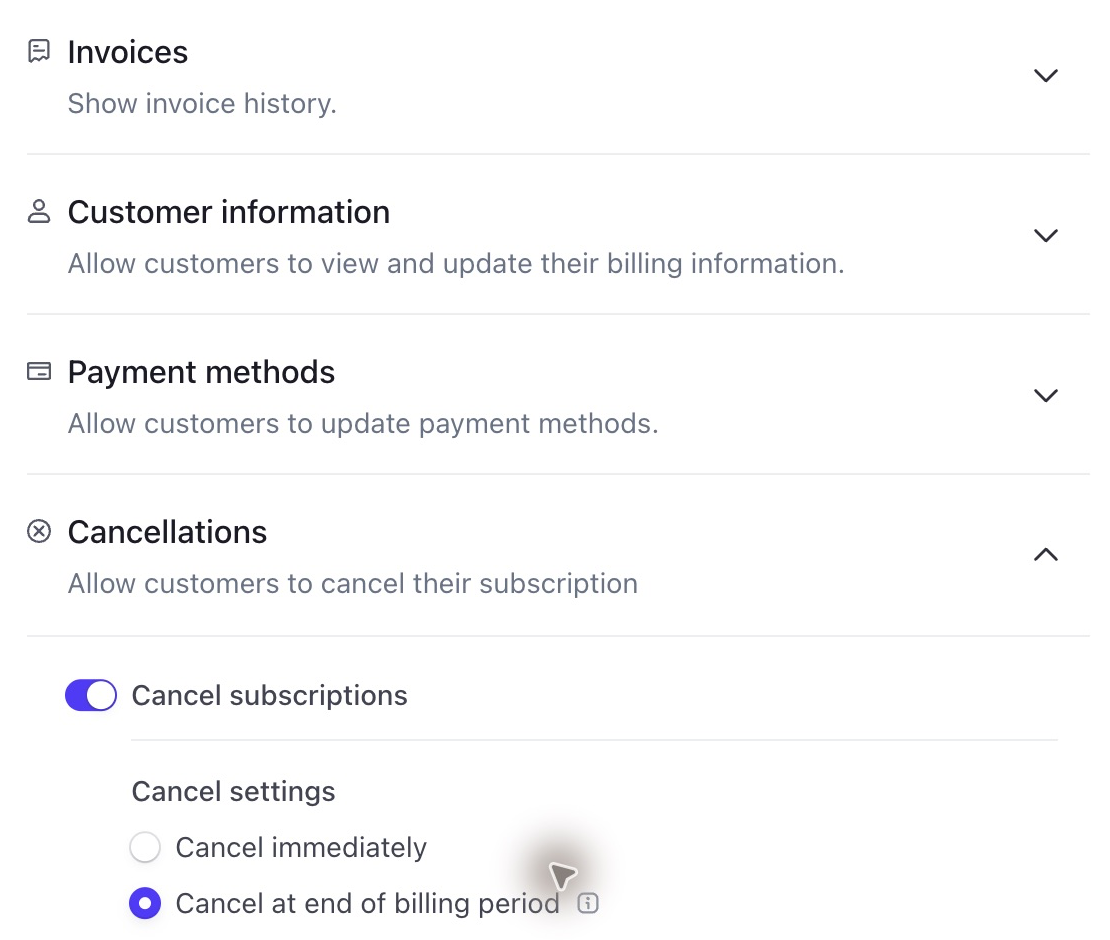
Example cancellation policy: at the end of the billing period.
You can choose immediate cancellation instead. Hikari supports one approved recurring price; switching to another price removes subscriber access.
Complete a test subscription
Sign in, open Account, and select Start subscription. Use Stripe’s 4242 4242 4242 4242 test card, a future expiry, and any three-digit CVC. After returning, select Refresh subscription. Account should show Your subscription access is active. and the subscription status; Dashboard should also show subscriber access.
Select Billing portal to open Customer Portal. Cancel the disposable subscription there, keep the listener running, and refresh Account after Stripe delivers the change. Immediate cancellation should remove access. A scheduled cancellation keeps access while the subscription remains active or trialing.
The browser’s return from Checkout is not the access decision. If access has not appeared, check successful delivery to /api/webhooks/stripe, your selected price, and the persisted subscription status. The Stripe webhook guide explains provider delivery behavior.
Create a hosted destination
Have your stable HTTPS application origin ready from Deploy to Vercel. Stay in the same Stripe test account for the first deployment.
Select the five subscription events
In Workbench → Webhooks, choose Create an event destination and Your account. Search for and select each event:
customer.subscription.created
customer.subscription.updated
customer.subscription.deleted
customer.subscription.paused
customer.subscription.resumed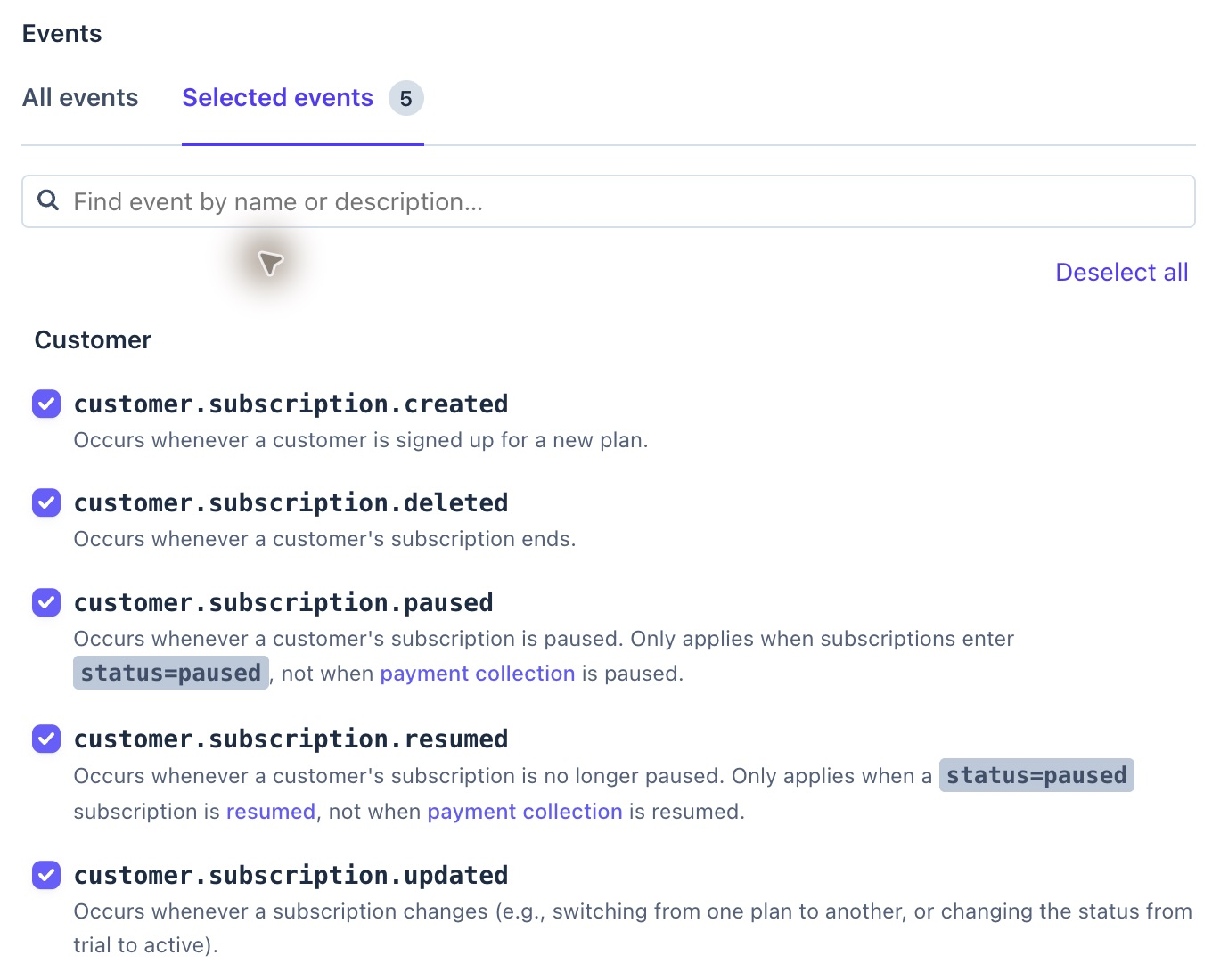
Select these five subscription events for your account.
Use snapshot events. Choose the API version bundled with your installed Stripe SDK; print it from the Hikari root without supplying credentials:
bun -e 'import Stripe from "stripe"; console.log(Stripe.API_VERSION)'The included handler synchronizes subscription state. Product, Price, invoice, and checkout.session.completed events are not part of this webhook path.
Save the endpoint and its secret
Choose Continue, select Webhook endpoint, and enter your own application URL:
https://<app-domain>/api/webhooks/stripe
Use your account and snapshot events for this destination.
Save the destination. Open its settings, reveal the signing secret privately, and save it as STRIPE_WEBHOOK_SECRET in the selected hosting environment. Redeploy to load it. Each hosted destination has its own secret; the local stripe listen secret cannot verify its deliveries.
See Stripe's destination fields if your Dashboard presents the steps differently. Continue with the deployment guide to deploy and verify the application.
Check delivery and access
Locally, inspect the listener's responses. Hosted, open your destination's Event deliveries tab and inspect the HTTP status for the actual subscription event.


Example from a test subscription: delivered with HTTP 200.
| Result | Next action |
|---|---|
HTTP 200 | Refresh Account and confirm the expected subscription status and access. |
HTTP 400 | Check test/live mode and the active destination's signing secret; restart or redeploy after correcting settings. |
HTTP 503 | Inspect application errors and provider/database availability before retrying. |
| Delivered but access missing | Check the configured Price ID, subscription status, and customer mapping for the same account. |
A successful delivery alone does not prove subscriber access. Complete a real test subscription and verify the result in Account and Dashboard. customer.subscription.updated records a scheduled cancellation; customer.subscription.deleted reports when the subscription actually ends.
Understand the access rule
| Persisted subscription | Subscriber access |
|---|---|
active or trialing on the approved recurring price | Granted |
Scheduled cancellation while still active or trialing | Granted until status changes |
| Other status, other price, or an unsupported item layout | Denied |
Hikari supports one recurring item on the configured price. Checkout starts with quantity one; quantity alone does not change access for an otherwise eligible subscription. Existing subscriptions that still need management open Portal instead of another Checkout. If only canceled or incomplete_expired subscriptions remain, you can start a new Checkout. Repeated requests reuse an open Checkout session.
Extend subscriber features
Use the included access endpoint as the pattern for your own subscriber-only operations:
.get('/subscription/access', async (c) => {
  await service.requireAccess((await user()).id);
  return c.json({ access: true });
})
The route checks the signed-in user before BillingService.requireAccess() reads the persisted subscription. An anonymous request returns HTTP 401; a signed-in account without eligible access receives HTTP 403. Put this check before returning subscriber-only data or performing a paid operation. A Checkout return URL cannot grant access.
Keep subscription state current
The five configured subscription events use the same synchronization path. The webhook verifies the raw body and signature before the service retrieves Stripe's current Subscription and saves it:
const state = await this.provider.currentSubscription(event.subscriptionId!);
if (!(await store.customerForStripe(state.customerId)))
  return { received: true, outcome: 'ignored' as const };
await store.saveSubscription(state);
Retrieval and persistence run under a per-subscription database lock. Repeated or out-of-order events therefore refresh current provider state instead of overwriting it with an older event snapshot. Failed retrieval or persistence returns HTTP 503 so Stripe can retry; an unmapped Customer is ignored and gains no access. Read Stripe's subscription webhook guide for provider delivery behavior.
Next, run the real subscription E2E, cancel your disposable test subscription, and configure the hosted endpoint before deploying.